![Group 11.svg]](https://support.iris.audio/hubfs/Group%2011.svg)
Connecting IRIS Clarity to your calling platform
In your VOIP platform, select IRIS Clarity as the microphone and speaker device. Alternatively, set IRIS Clarity as the systems default audio driver and allow it to be selected automatically
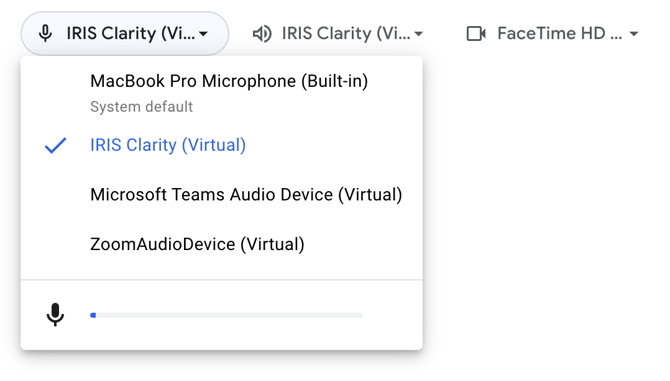
App connection status
You will know that IRIS Clarity has successfully connected to your VOIP platform by the green indicator in the microphone and speaker sections. The name of the connected platform will also be shown.
A red indicator with the message 'No app connected' means that IRIS Clarity is not connected to a call. You may need to reselect the IRIS Clarity device in your VOIP platform.
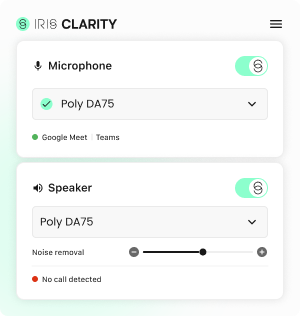
Toggles
You can toggle noise-cancellation on or off on the microphone or speaker using the Clarity switch.
When the switch is green, Clarity is processing audio and removing noise. When the switch is grey, Clarity is not removing noise.
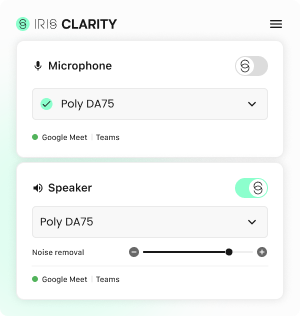
Device selection
Select your connected device from the device dropdown.
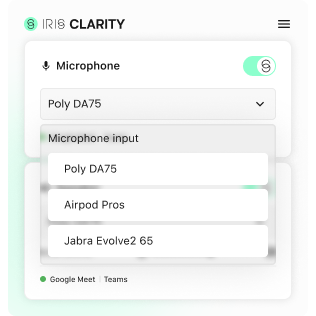
Noise removal slider
The slider allows you to adjust the amount of noise suppression on the speaker side of the call (what you hear).
- To increase the amount of noise removed, for example in particularly noisy environments, move the slider to the right.
- To decrease the amount of noise removed, for example to let background voices or sounds into the call, move the slider to the left.
These settings can be enabled directly in the app or via App Profiles in the account dashboard.